Visual editor
Connect actions in the editor: opening tabs, navigation, clicks, typing, waiting and reading data. Add conditions, loops and subflows.
Build a sequence of blocks, test it in the editor and run it on selected profiles. Pass different data and parameters to each profile.
Create workflows in the visual editor, use conditions and loops, and run them on selected profiles.
Connect actions in the editor: opening tabs, navigation, clicks, typing, waiting and reading data. Add conditions, loops and subflows.
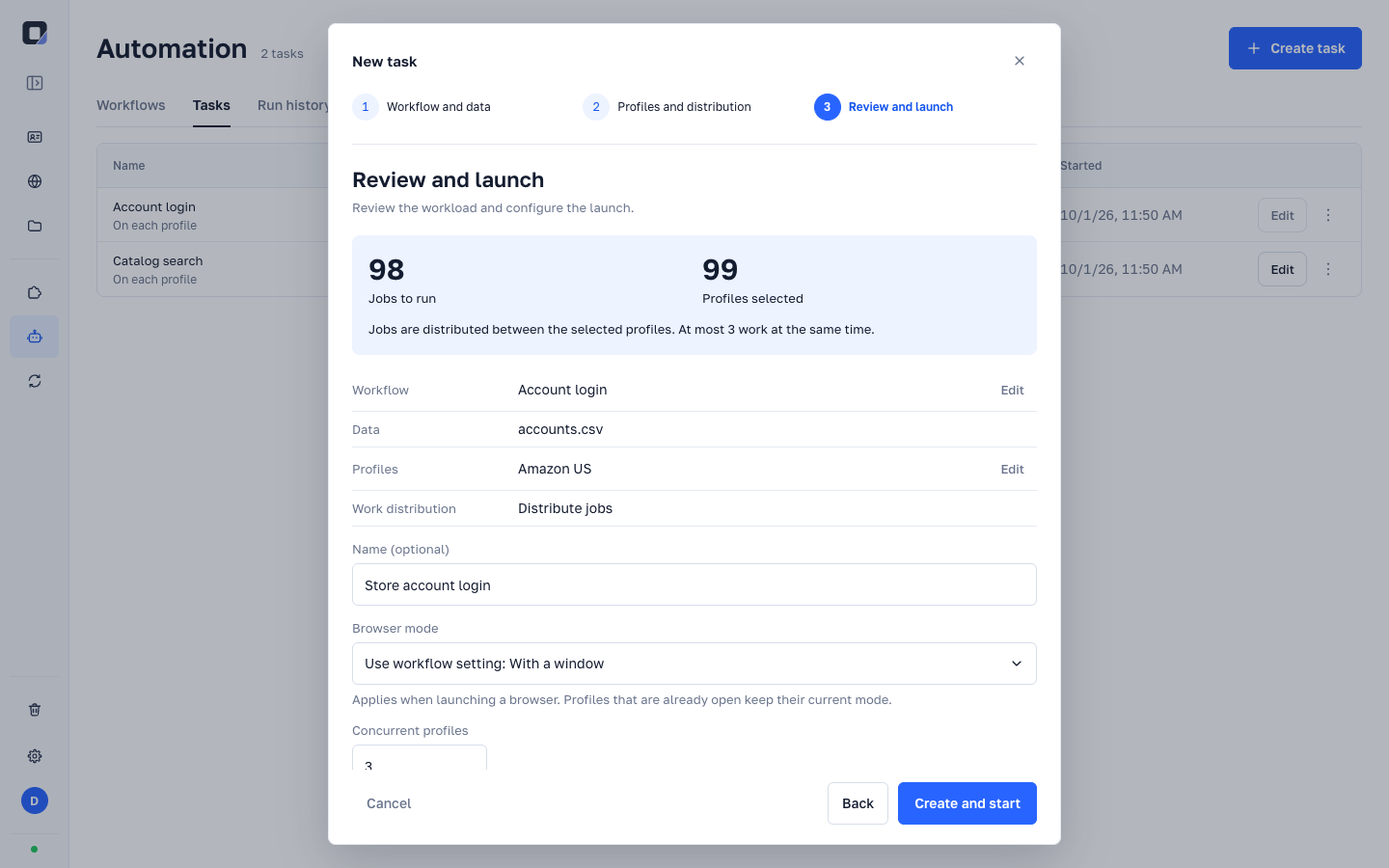
Run a workflow on multiple profiles, set the number of concurrent runs and supply data from CSV, JSON or XLSX.
Work with tables and connect supported external services: Google Sheets, email, OpenAI and 2Captcha. Services require your own credentials.
Test steps in debug mode, review logs and configure error handling. Run workflows manually, from the interface or from the command line, and check the result in the run history.
Real Ombra screenshots with demo data. Click a screenshot to see the details.
Input data: profiles and a table of accounts. Actions: fill in the form, verify sign-in and save data. Result: results by profile, cookies and an error log.
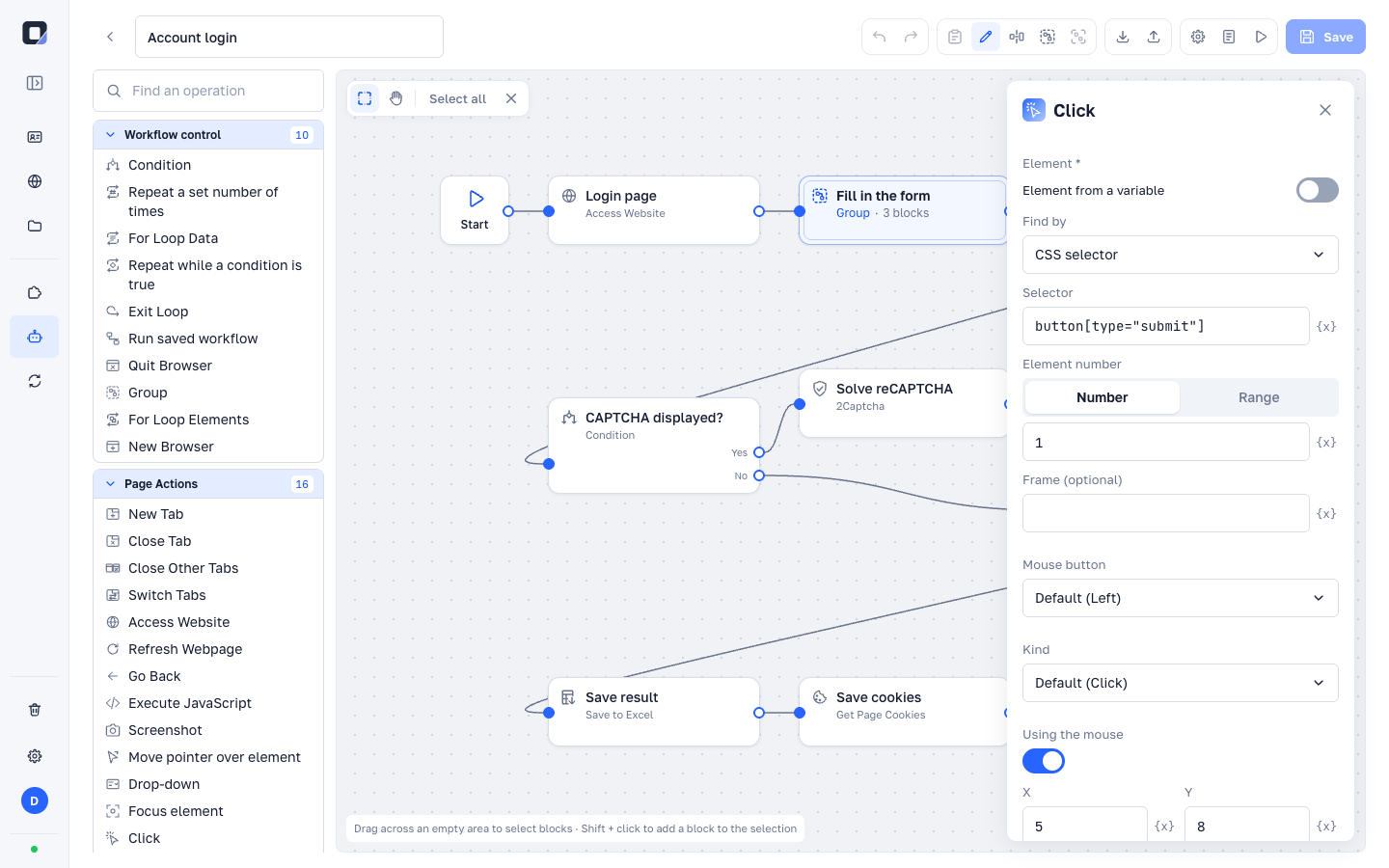
In this example, the 2Captcha block uses your external service key. See recordings of the built-in module in the CAPTCHA section.
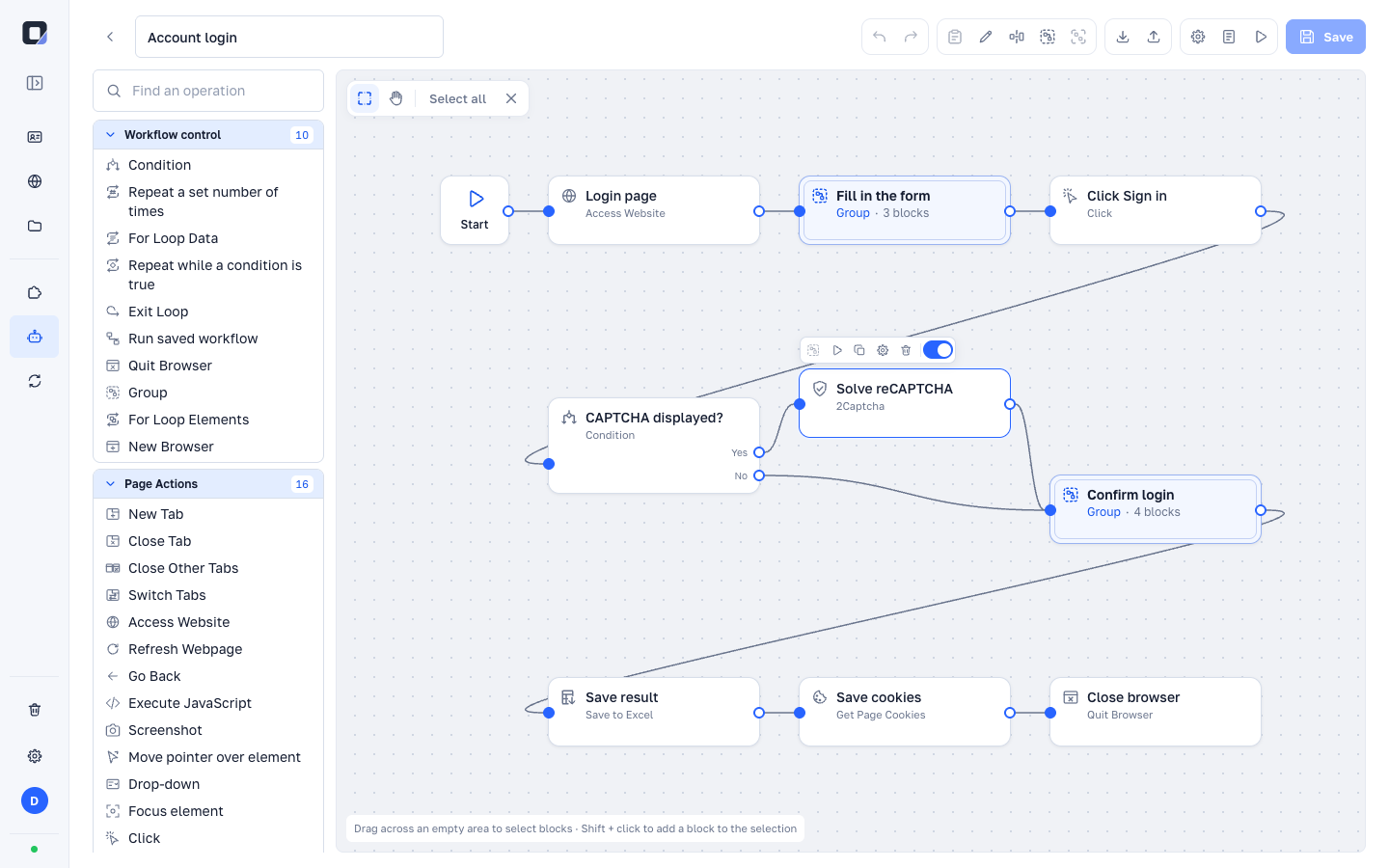
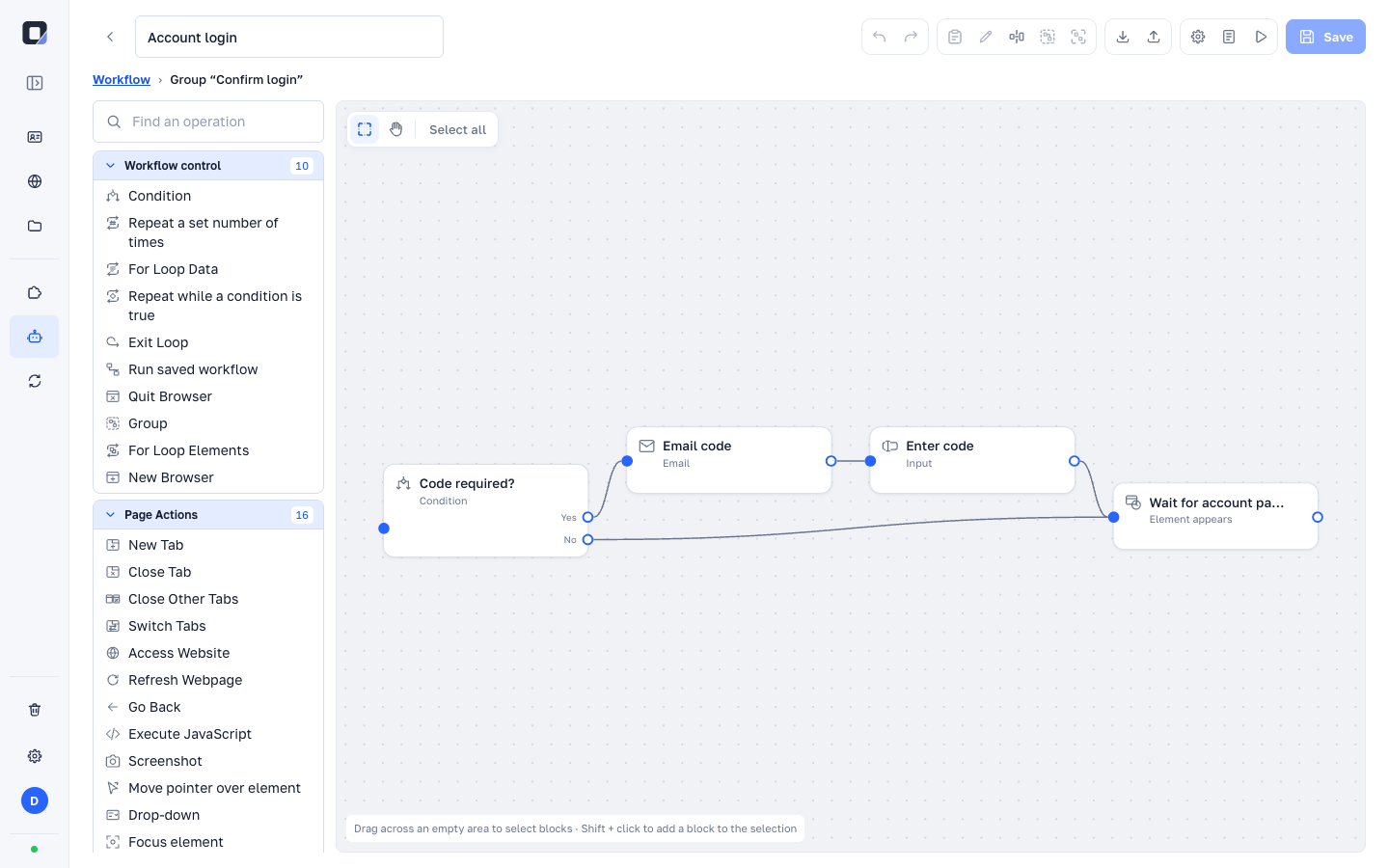
A workflow of connected blocks: page navigation, action groups, a condition, 2Captcha and saving results.
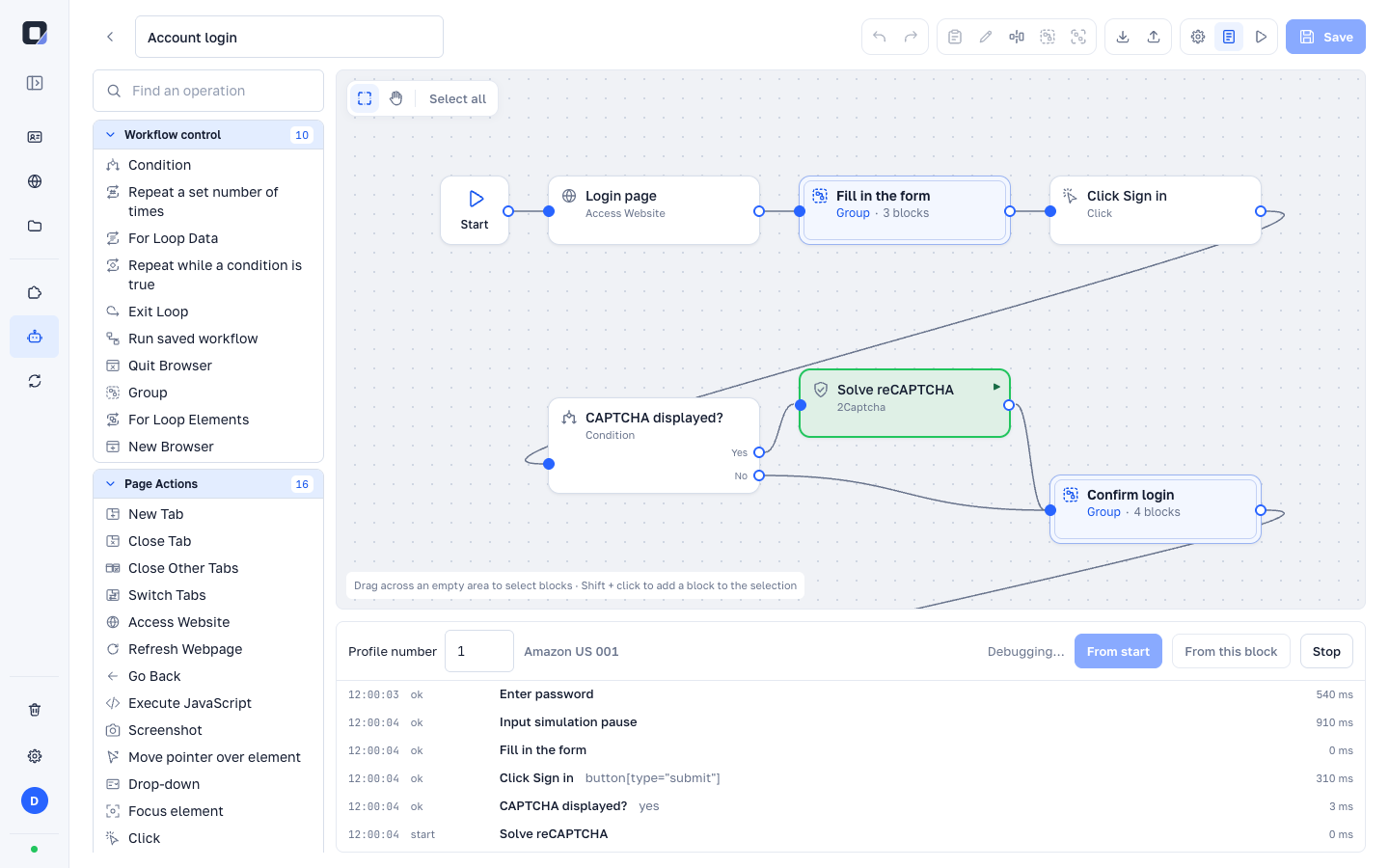
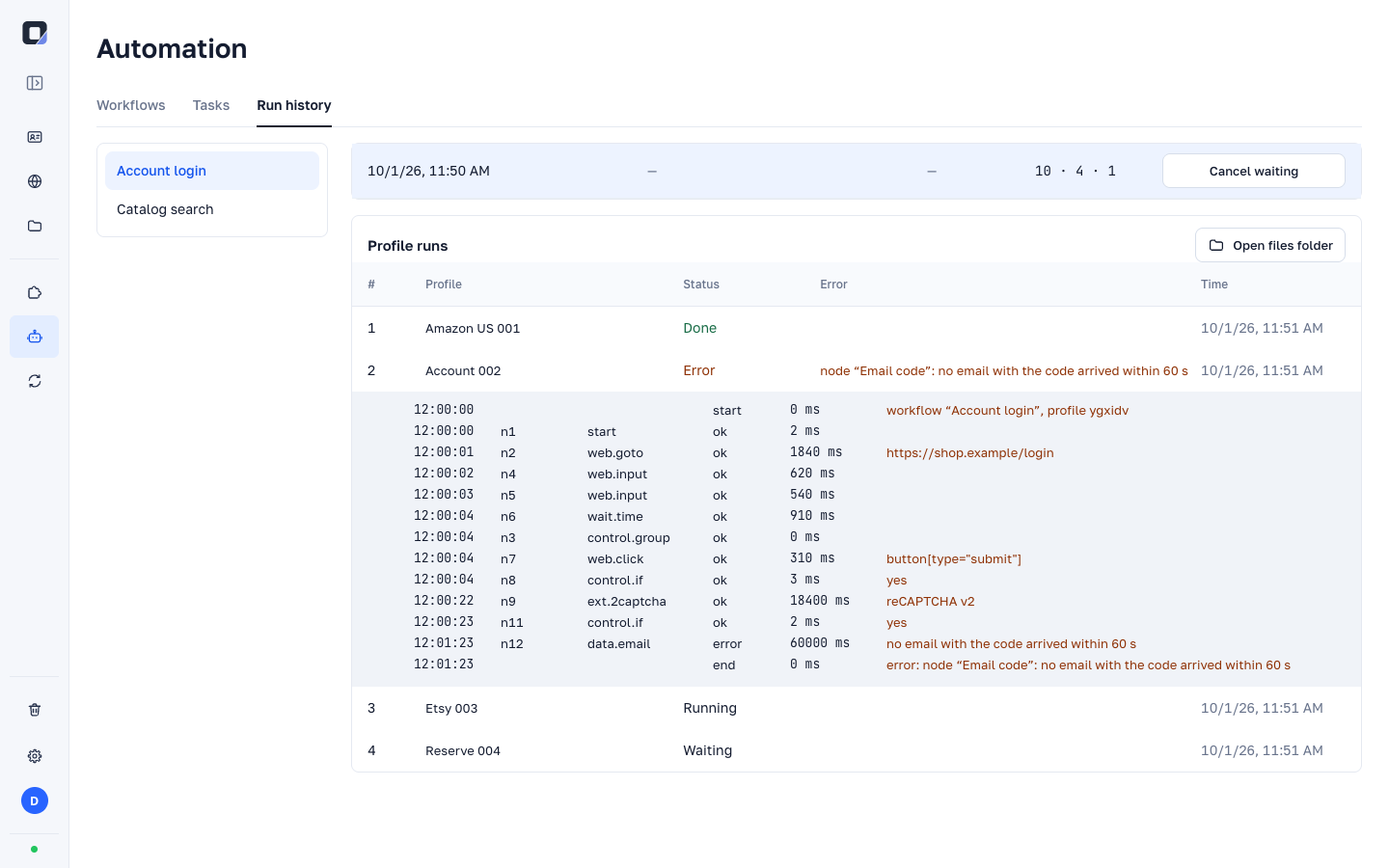
Run the workflow on a selected profile and review the time and result of each step.
Example use case. Adapt the workflow to your data and pages.
Ombra features and setup.
Visual blocks are enough for common workflows. A JavaScript block and Local API control are available when needed.
Direct import of AdsPower workflows is not supported. Create a workflow in Ombra’s editor using action, condition and loop blocks.
The standalone Ombra browser is available for macOS, Windows and Linux. You can run it without an account.