
A debug run is a normal run on one profile without a task. It uses the current draft of the workflow, runs in the browser of the selected profile and writes each operation to the debug panel under the canvas.
Start a debug run
Open the workflow
Open the workflow in Automation and select the node you want to check.
Choose the profile
In the debug panel, enter the profile number. The profile name and number identify the profile that will run the workflow.
Choose the start point
Choose From start for the whole graph or From this block to begin at the selected node.
Watch and stop
Follow the live log. Choose Stop to end the run.
Read the live log
The live log adds a line for each operation with the time, the result, the message and the duration. A successful operation shows a message, such as the URL that was opened or the selector that was clicked. A failure shows the operation and the error message.
Start from a node when the first operations are slow and the failure is near the end. The run begins at that node, so the earlier operations do not run again. If the node needs another field, change the graph in the editor and run it again.
Use the run history
Open Run history in Automation to see the tasks and their batches. A batch shows the number of jobs, the profiles and the distribution. Each job row shows the profile, status, error and time; expand a job to see the operations and their results.
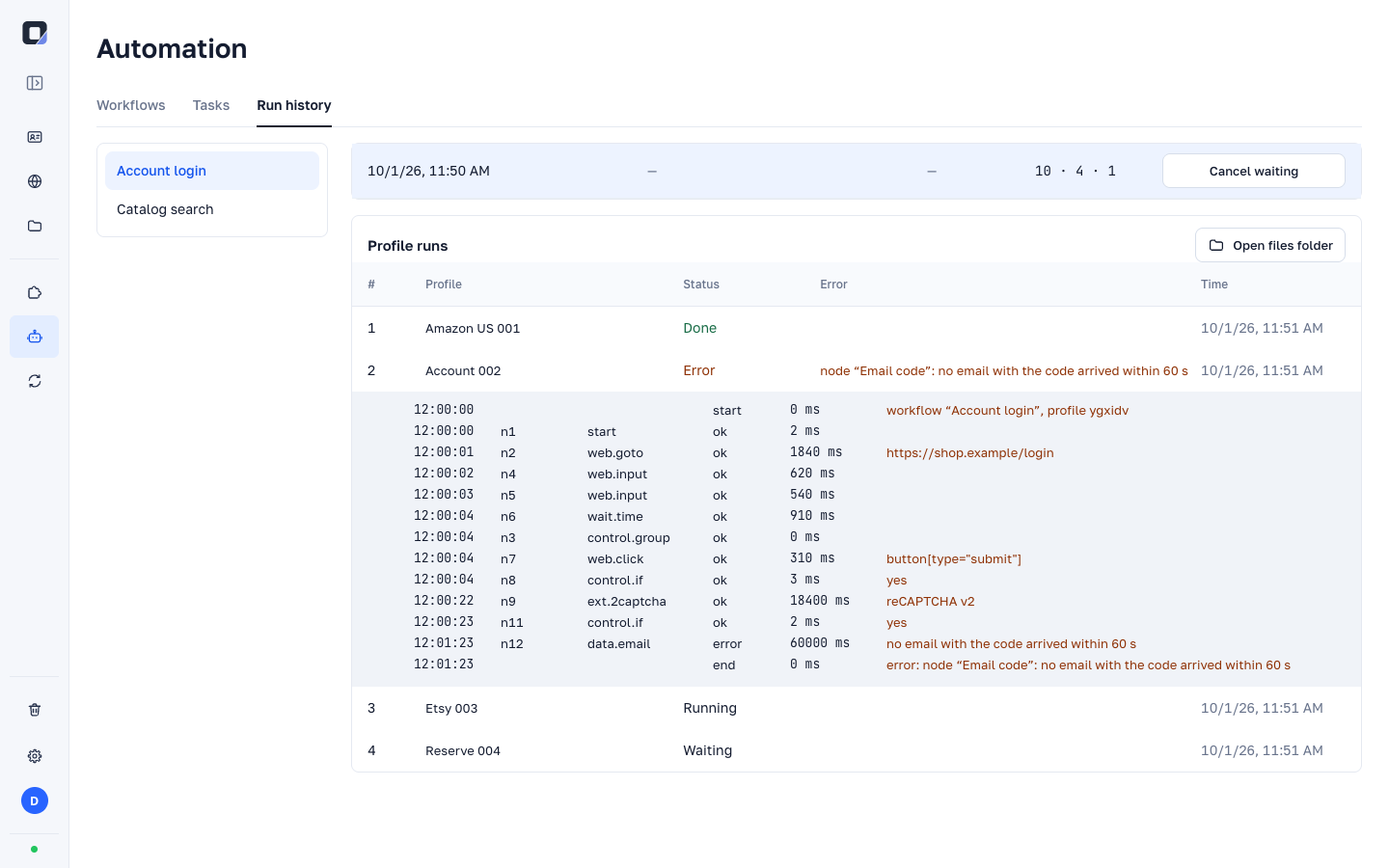 1:1
Use Open files folder to open the folder of the batch. Cancel waiting removes the jobs that have not started, without stopping the jobs that are already running.
Run statuses
Every job has one status. A batch can contain jobs with different statuses, especially after a retry or a partial stop.
| Status | Meaning |
|---|---|
| Queued | The job is in the task queue and has not started. |
| Waiting | The job is waiting for a free profile or for its turn. |
| Running | The workflow is executing on the profile. |
| Done | The workflow finished without an error. |
| Error | The workflow finished with an error; the message is shown in the job. |
| Cancelled | The job was stopped before it finished. |
| Skipped | The job did not run, for example because the table had no row for it. |
Files of a run
Each batch has its own files folder. Operations such as Save to Txt, Save to Excel, Download File and Screenshot write their files there by default, so the output of one batch does not mix with another.
The folder stays after the batch ends. Open it from the run history and copy the files that you need.