
Open the profile editor
Go to Profiles and choose New profile. The editor opens on the General tab.
Name the profile
Enter a name, choose a group and add tags or a note if you need them. A platform domain is optional; it enables credential autofill on that site.
Choose a proxy
Open the Connection tab. Pick a saved proxy or leave the profile without one: on the first launch Ombra pins a random enabled proxy from the list.
Check the fingerprint
Open the Fingerprint tab. Ombra generates a consistent configuration automatically. Use Regenerate to get a new combination; fields you changed manually stay as they are.
Set the start pages
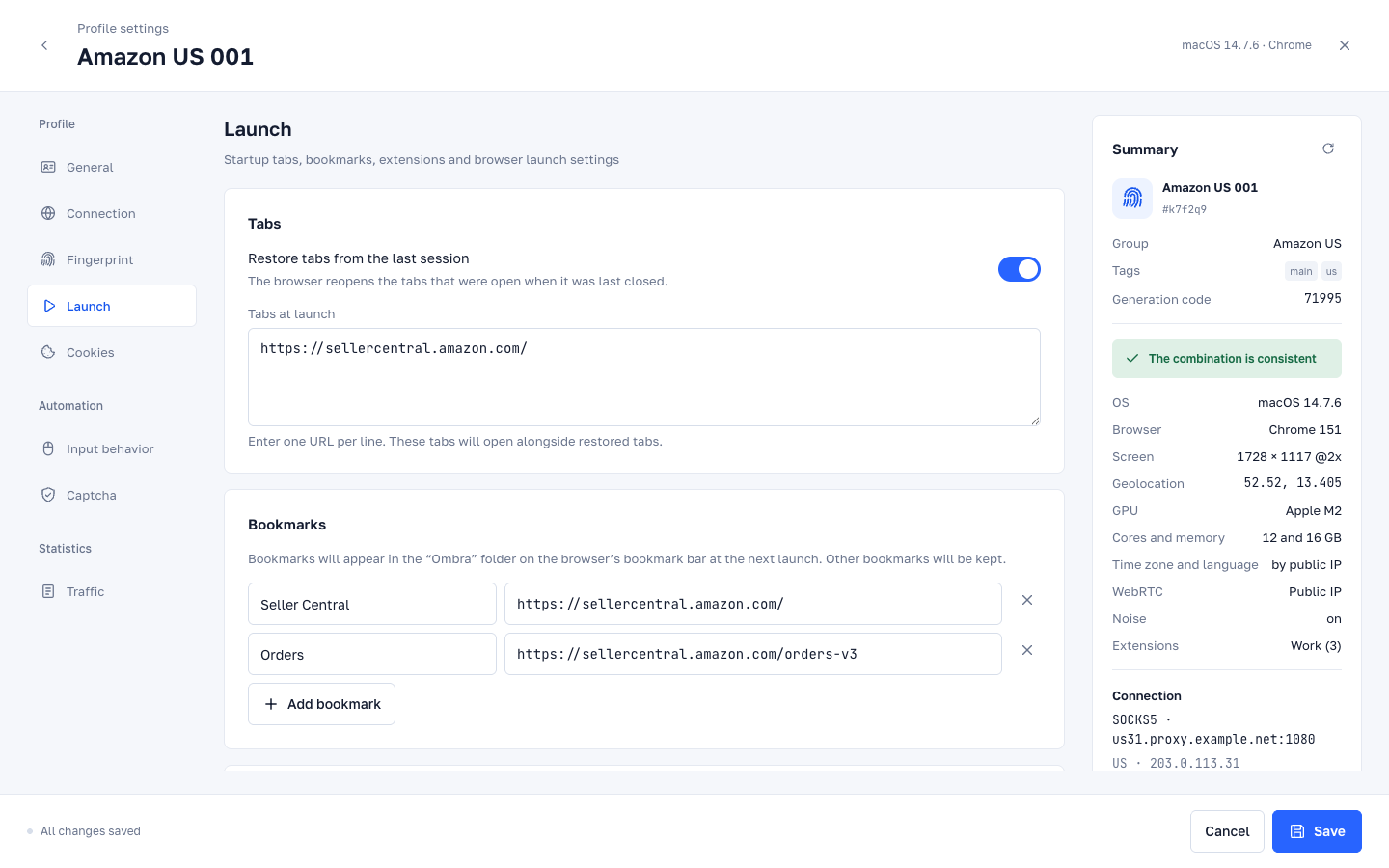
On the Launch tab add the pages that should open with the profile. You can also restore the previous session, add bookmarks and choose an extension set.
Save and start
Choose Save, then Start in the profile list. The browser opens with the selected fingerprint, proxy and start pages.
Proxy and connection
A profile keeps the proxy pinned to it between launches. If the pinned proxy is unavailable at start, Ombra chooses another one and warns you. The proxy setting is applied on the next launch, not to an already open browser.
Fingerprint
The generation code defines everything that is not set manually. The same code produces the same fingerprint between launches. The summary in the editor shows whether the combination is consistent before you save.
Launch and stop
Use Start in the profile row or in the editor. While the browser is open, the profile shows a running state. Close the browser window or choose Stop in Ombra; both actions release the profile slot.
 1:1
What to check next
- Open a fingerprint check page in the profile and compare the time zone, language and WebRTC address with the proxy.
- Add more profiles to the same group and try bulk actions.
- Connect to the profile from Playwright or Puppeteer through Local API.