
Search
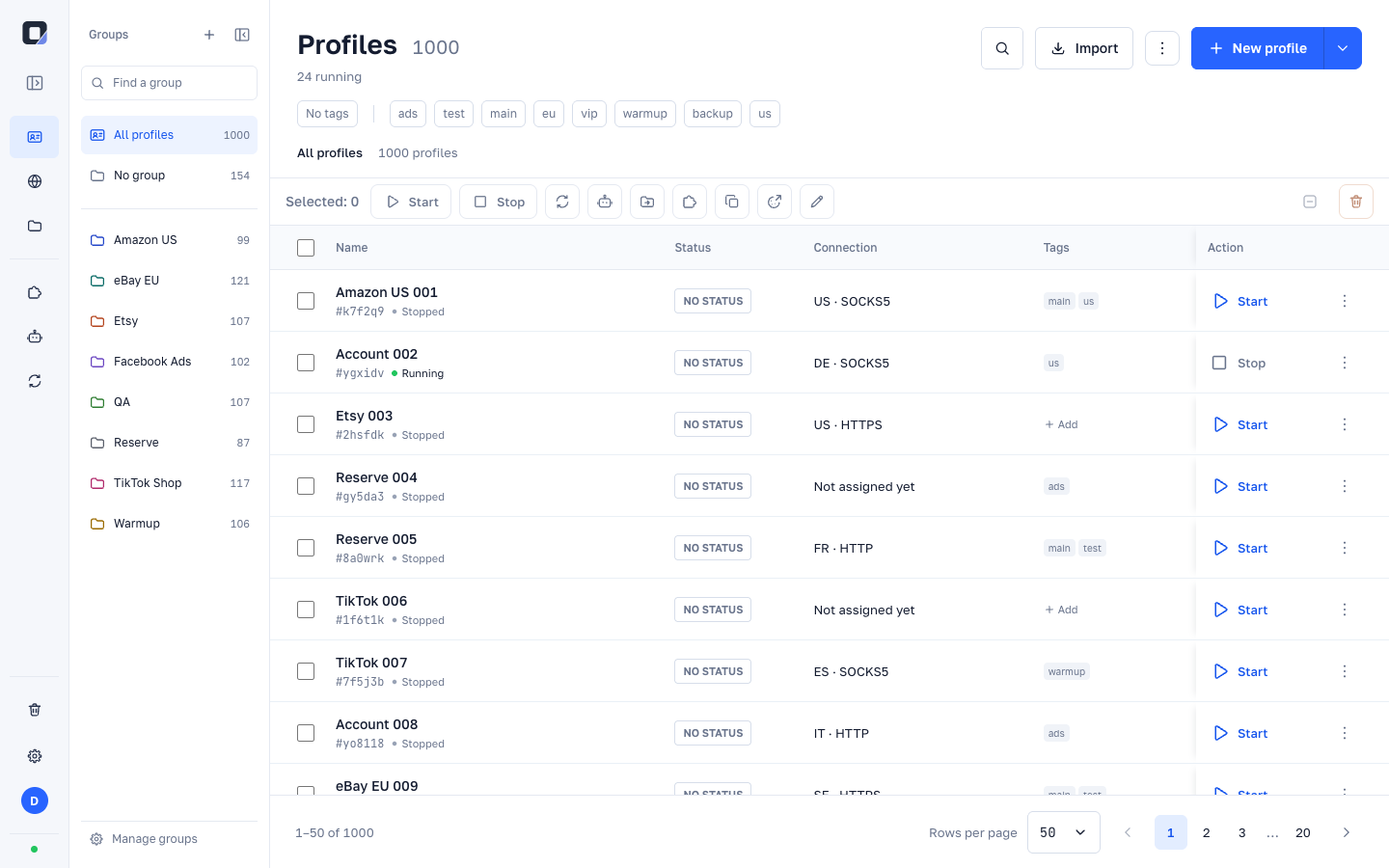
The search field at the top of the list accepts a name, a note, an IP address or a profile number. The placeholder names the four options: Name, note, IP or #. Search does not look at the password, the 2FA key or cookies.
- A full or partial name finds profiles by title.
- A note matches the text saved on the General tab of the profile.
- An IP address finds profiles that use a proxy with that address.
- A number with the
#prefix finds one profile, for example#k7f2q9.
Clear the field to return to the full list. Search does not change the profile data and does not select anything.
Filters
Filters opens the filter panel. Group, tag and status values narrow the list to the profiles that match. Filter values can be reset at any time; the profile data does not change.
- Group limits the list to one group, including No group.
- Tag requires the tag; the tag row above the list does the same.
- Status uses the user status described in Groups, tags and statuses.
- All above the list returns to every profile.
Filters only limit what the list shows. They stay in place until you reset them, so a narrow list can look like a list of missing profiles.
Sorting
Sorting changes the order of the rows and nothing else.
| Order | What it uses |
|---|---|
| Number | The profile number shown under the name. |
| Name | The profile title. |
| Created | When the profile was created. |
| Last launch | The last time the profile was started. |
The Last launch value is a single date, not a log: Ombra does not keep a launch history for a profile. Automation keeps its own run journal for workflow runs.
Columns and pages
Columns opens the list of columns. Clear a column to hide it and select it again to show it; hiding a column does not delete any data.
Long lists are split into pages. The footer shows the visible range, the page numbers and Rows per page.
What the list does not include
The profile list has no favourites and no launch history. To judge an unfamiliar profile, use the Last launch value, the Traffic tab of the editor and the automation journal. If the profile ran as part of a workflow, look for the run in the automation journal; manual launches leave no such log.
The selection and the commands that work on it are described in Bulk actions.
Search and bulk actions
Search and filters also set the scope of Select all matching profiles in the bulk action bar. A narrow query means that a bulk command reaches fewer profiles, so check the count before you start.
Narrow the list first, then select: a short list is easier to check before a command runs. The commands themselves are listed in Bulk actions.
 1:1