
System and browser
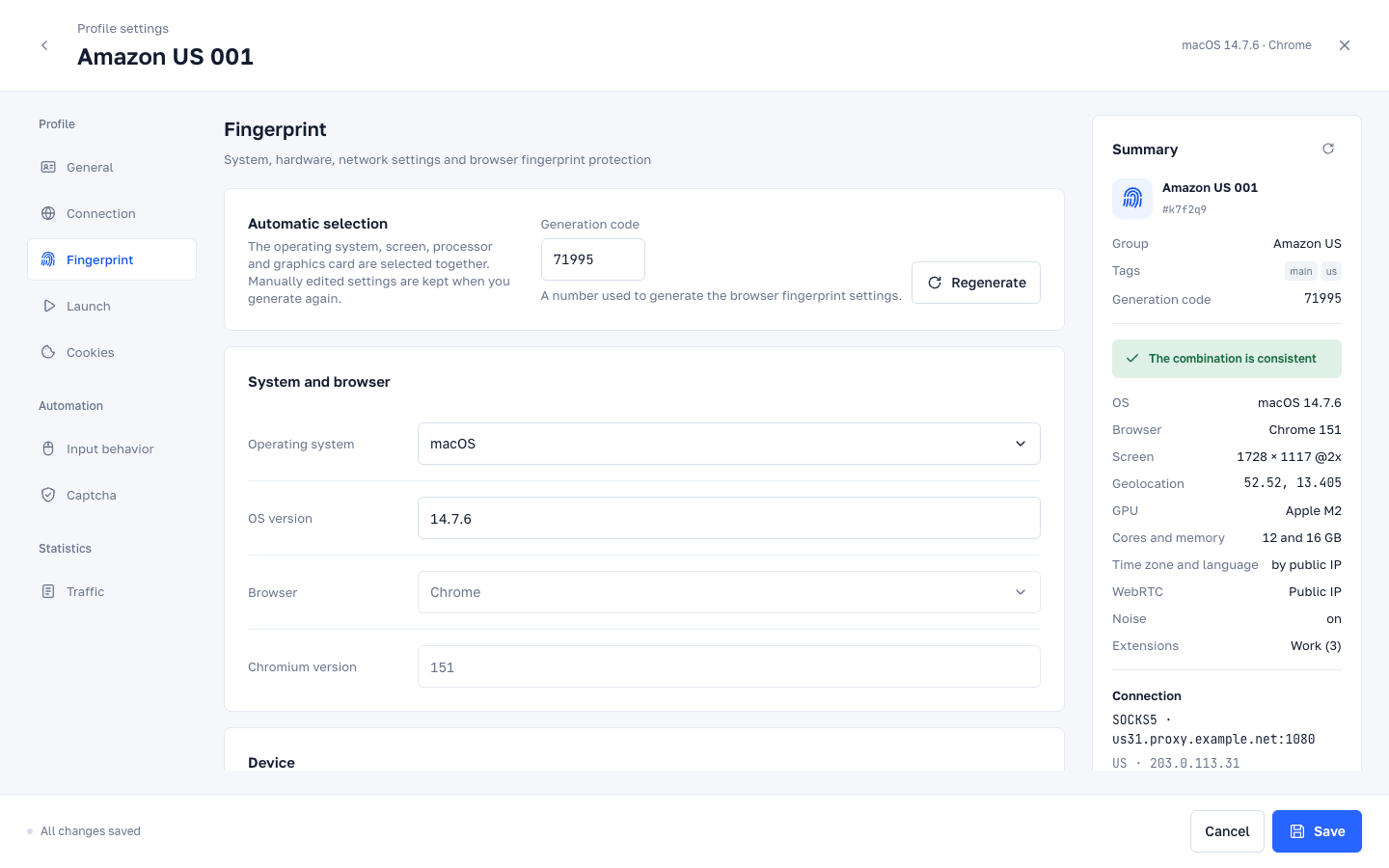
System and browser groups the platform values.
- Operating system — macOS. The Windows item is disabled with the note Windows — not available in this version.
- OS version — the macOS version, for example
14.7.6. - Browser — Chrome; the value is fixed.
- Chromium version — read-only, from the installed browser build.
The persona is macOS in this version. Windows and Linux are supported as manager platforms, but not as fingerprint platforms in this version.
The Browser: Chromium 151 line in the sidebar shows the same major version as the Chromium version field.
 1:1
Device
Device holds the hardware and screen values.
- Screen resolution — width and height.
- GPU — the graphics card model.
- CPU cores — the number of processor cores.
- Memory, GB — the amount of RAM.
- Screen scale — 1×, 2× or 3×.
- Touch points — 0, 5 or 10.
- Storage quota, MB — the storage limit reported to sites; an empty field means the default.
Automatic selection fills these fields as one combination. A manual change adds the manual badge and survives regeneration.
The screen list contains prepared values; the current value stays in the list even when the combination changes.
Network, language and time zone
These values should match the proxy. The summary shows them together.
- Time zone — By public IP follows the external address of the proxy; Manual takes a value you enter, for example
Europe/Berlin. - Language — the same two modes; the value is the language reported to sites, for example
de-DE. - WebRTC — Public IP uses the proxy address; This computer's IP takes the IP address you enter.
- Geolocation — Not set or Manual; manual mode takes latitude and longitude.
The Geolocation hint says that coordinates are entered manually and that automatic detection by IP is not available yet.
Noise
Canvas, WebGL, audio and ClientRects noise is one switch. It enables small changes to Canvas, WebGL, audio and element geometry data.
The switch is saved with the profile. The summary shows on or off.
One switch covers all four APIs.
Values without manual fields
These values cannot be edited by hand: fonts, media devices, the device name, the MAC address, voices, DNT, TLS parameters and the Chromium version.
The footnote in the Summary says that fonts, media devices and the MAC address are selected automatically and cannot be edited manually. The other values follow the combination and the engine build in the same way.
Check the combination
The Summary panel shows The combination is consistent when no field has an error. Review the combination of settings lists the fields that need attention.
The check runs on save. Review manually set values together with the proxy: the time zone, language and WebRTC address describe the connection.
A field changed by hand keeps the manual badge; use the badge to return it to automatic selection.