
Open the profile editor
Select a profile in the Profiles list. The editor opens on the General tab and keeps the remaining tabs in three groups: profile, automation and statistics.
Find the profile
Use search or a group to shorten the list, then select the profile.
Change the settings
Switch between General, Fingerprint, Connection, Cookies, Launch, Input behavior, Captcha and Traffic.
Save
Choose Save. The footer confirms that all changes are saved, and the summary in the editor shows whether the fingerprint combination is consistent.
When changes take effect
The manager writes most changes to the profile folder and applies them the next time the browser starts. A browser that is already open keeps the settings it started with.
| Change | When it applies |
|---|---|
| Fingerprint and generation code | Next launch. |
| Proxy on the Connection tab | Next launch. |
| Extension set | Next launch. |
| Input behavior style | Next launch. |
| Start tabs and bookmarks | Next launch. |
| Imported cookies | Immediately, even in a running profile. |
Credentials saved for the platform domain become available for autofill from the next launch as well. Until then the browser uses the values it read at start.
Launch and stop
Choose Start in the profile row or in the editor. While the browser is open, the row shows the running state and the header counts the running profiles.
Choose Stop in Ombra or close the browser window. Stopping releases profile resources and its pinned proxy. There is no product cap on concurrent browsers.
- Running: the window is open and the profile occupies a slot.
- Stopped: the browser is closed and the slot is free.
- Starting, Waiting to start and Failed are launch states; they are described in Groups, tags and statuses.
Launch settings
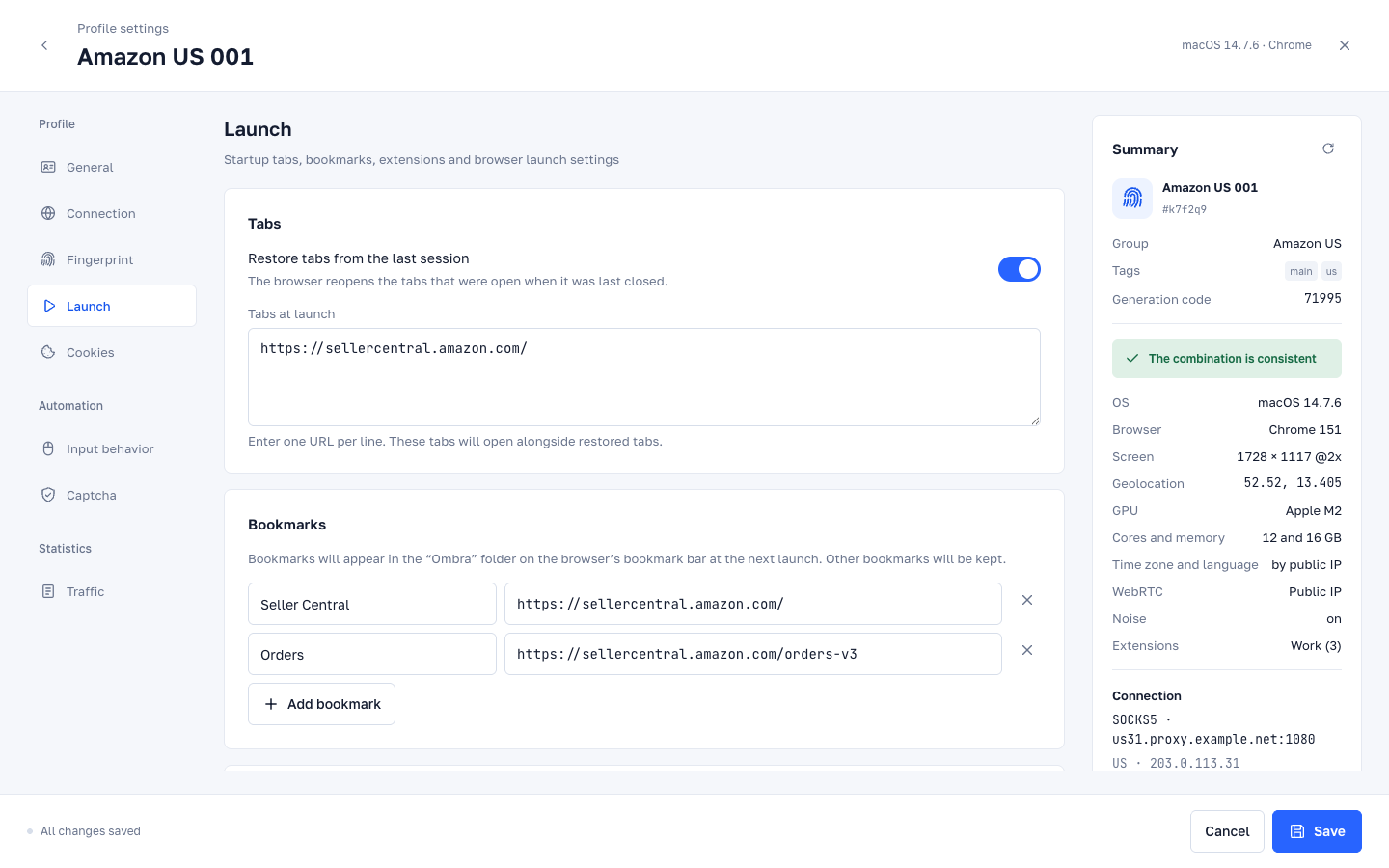
The Launch tab defines what the browser opens and which extensions it loads. The values are used at the next launch.
- Tabs at launch takes one URL per line; these pages open alongside restored tabs.
- Restore tabs from the last session reopens the tabs that were open when the browser was closed.
- Bookmarks are placed in the Ombra folder on the bookmark bar.
- The extension set is chosen here; the set itself is configured on the Extensions screen.
The tabs, bookmarks and extension set have their own details in Cookies, tabs and bookmarks and Extensions.
Check before the first launch
- The summary on the right shows the group, tags, generation code and the consistency result.
- The Connection tab shows the pinned proxy; without one, the first launch pins a random enabled proxy.
- The Traffic tab counts sent and received bytes and the number of connections after the launch.
- The Cookies tab stays empty until the browser visits a site.
If you need a second profile with the same settings, use Copy, import and export instead of filling the form again.
 1:1