
Select profiles
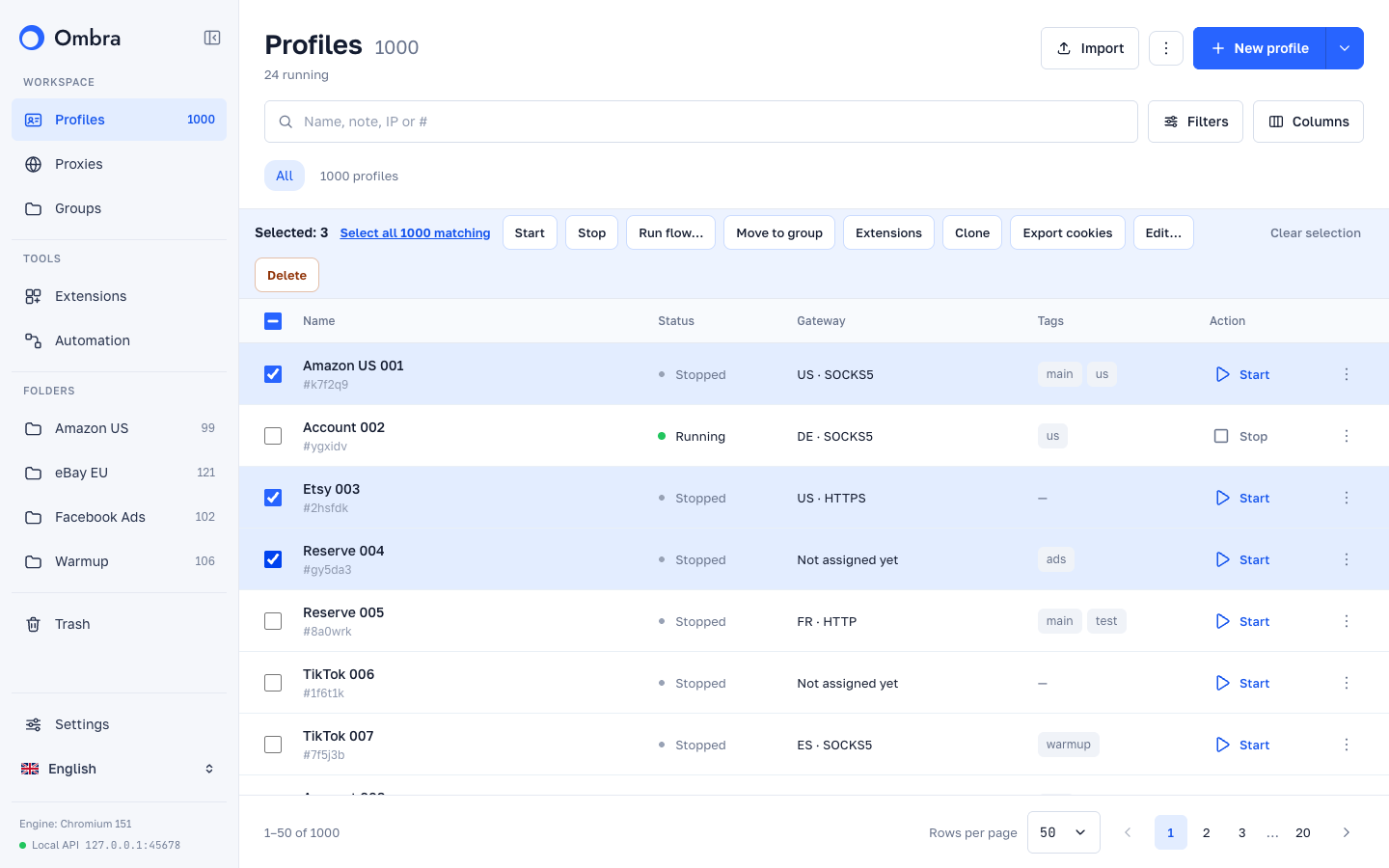
Select profiles with the checkboxes in the list. The action bar appears above the rows, shows Selected: N and offers the commands that apply to the whole selection.
- Select all matching profiles adds every profile that matches the current search and filters, including rows on other pages.
- Clear selection removes the selection and closes the bar.
- A command acts on the whole selection, so check the count before you choose a destructive action.
Available actions
| Action | What it does |
|---|---|
| Start | Starts the selected profiles that are not running. |
| Stop | Stops the selected profiles that are running. |
| Synchronize | Synchronizes the browser windows of the selection, as described in Window sync. |
| Run workflow… | Starts an automation workflow on the selected profiles. |
| Move to group | Assigns one group to the selected profiles. |
| Extensions | Assigns one extension set to the selected profiles. |
| Create a copy | Creates copies with the settings listed in Copy, import and export. |
| Export cookies | Saves the cookies of the selected profiles to files. |
| Edit… | Changes the fields you mark for all selected profiles. |
| Delete | Moves the selected profiles to Trash. |
Synchronize is part of Window sync, and Run workflow… starts a workflow built in Automation.
Bulk edit
Edit… opens a form with the profile fields. Only the fields you mark are changed; unmarked fields keep their current values.
For running profiles the new values are saved and applied after the next restart. The open browser keeps its current settings, because the proxy, the extension set and the input behavior are read at launch.
This is the fastest way to change a group, tags, a status or the start pages for a whole batch. Editing one profile is described in Edit and launch a profile.
Bulk delete
Delete moves the selected profiles to Trash. Running profiles are skipped instead of being stopped, so stop them first if they must be deleted too.
Restore profiles from Trash and restore or remove them permanently there.
A safe order for a large batch
- Narrow the list with search and filters, then choose Select all matching profiles.
- Use Edit… to set the group and tags, and Extensions to assign the set.
- Start the batch with Start and check the running count in the list header.
- Synchronize the windows if every window must receive the same actions.
Copies created with Create a copy keep the organization but not the credentials or cookies; Copy, import and export lists the exact difference.
 1:1